Complete Step-by-Step Guide
If you’re tired of paying $20, $30, or even $40 every time you need to generate an AI image, I have great news. While researching free AI image generators in 2025, I discovered Qwen AI—a platform that offers completely free image generation with no subscription plans, no pricing tiers, and no hidden costs. After watching a comprehensive tutorial on how to use this tool, I learned that Qwen isn’t just an image generator; it’s a full-fledged AI platform with capabilities that go far beyond creating visuals. Here’s everything I learned about getting started with Qwen AI and making the most of its free features.
Also Discover: How to use Voice Generators Effectively: Tips and Tricks
What You’ll Learn
- How to create a free Qwen AI account in minutes
- Step-by-step process for generating AI images
- How to customize image sizes and resolutions
- Tips for writing effective image prompts
- How to use Qwen’s image analysis features
- Additional features beyond image generation
Why Qwen AI Stands Out
What immediately caught my attention while researching Qwen AI is its pricing model—or rather, the lack of one. According to the tutorial I studied, Qwen is an AI tool that allows you to use it completely for free. There are no plans, no pricing structures, none of that complexity you find with other platforms.
The instructor emphasized that you no longer have to pay $20 for one platform and $10 for another. Instead, you can handle all your AI image generation needs for free with Qwen and it can actually do so much more than just create images.
As someone researching AI tools for creative work in 2026, this immediately seemed too good to be true. But as I followed along with the tutorial, it became clear that Qwen genuinely offers substantial functionality without requiring payment.
Step 1: Getting to the Qwen AI Platform
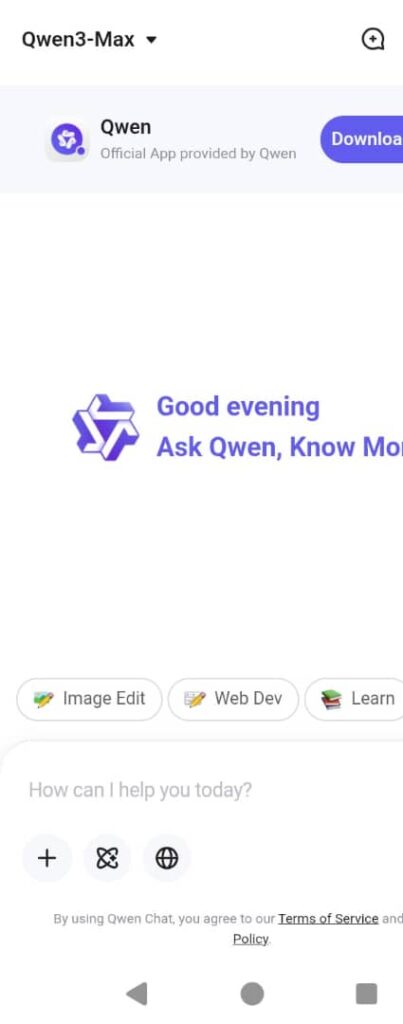
The first step I learned from the tutorial is straightforward. To get started with Qwen, simply head over to qwen.ai/home.
Once you arrive at the homepage, you’ll see that Qwen has three different tabs:
- Qwen Chat – The main interface for interacting with the AI
- Research – For deep research capabilities
- API Platform – For developers who want to integrate Qwen into their applications
For image generation purposes, you’ll want to click on Qwen Chat, which opens up the chat section for Qwen AI.
Step 2: Creating Your Free Account
After clicking on Qwen Chat, you’ll see a “Start Now” button. The tutorial showed that you can also download their desktop application if you’re going to be a frequent user and like to keep your AI tools readily accessible. However, the instructor preferred using it directly in the web browser, which seems more convenient for occasional use.
The Sign-Up Process:
- Click on “Start Now”
- Click “Sign Up” in the top right corner
- Enter your full name, email, and password
Alternatively, if you want a faster account creation process, you can:
- Click “Continue with Google” to use your Google account
- Click “Continue with GitHub” to use your GitHub credentials
The tutorial demonstrated the Google sign-up process, which was remarkably quick. After selecting which Google account to use, you just click “Sign In” and then “Confirm.”
Important step: You’ll need to verify that you’re human through a simple verification check. Once you complete that and proceed, your Qwen AI account is ready to use. The instructor emphasized: no subscription required, no complicated setup.
Step 3: Accessing Image Generation
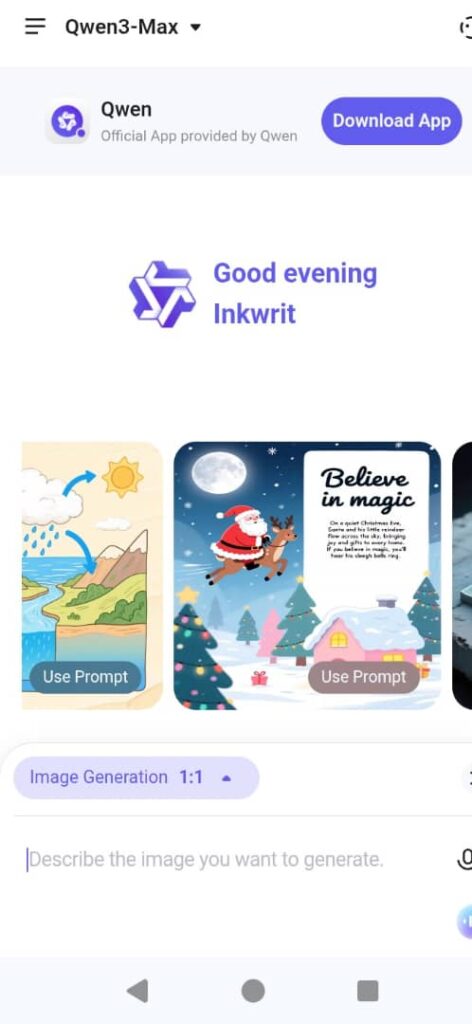
Once your account is set up, you’ll arrive at your chat homepage. From here, you can start with any general query, but since we’re focusing on image generation, the tutorial showed how to navigate directly to that feature.
Simply click on Image Generation from the available options. You’ll see some example prompts at the bottom of the screen to give you ideas of what’s possible.
Step 4: Customizing Your Image Settings
Before generating your first image, the tutorial covered an important customization step—setting your preferred image size and resolution.
How to change image size:
- Click on the dropdown menu in the bottom left corner
- You’ll see all the different sizes you can create
- Select your preferred aspect ratio (the tutorial used 4:3 as an example)
The tutorial showed that Qwen offers multiple aspect ratio options, allowing you to create images suitable for different purposes—whether you need landscape, portrait, or square formats.
Step 5: Writing Your First Image Prompt
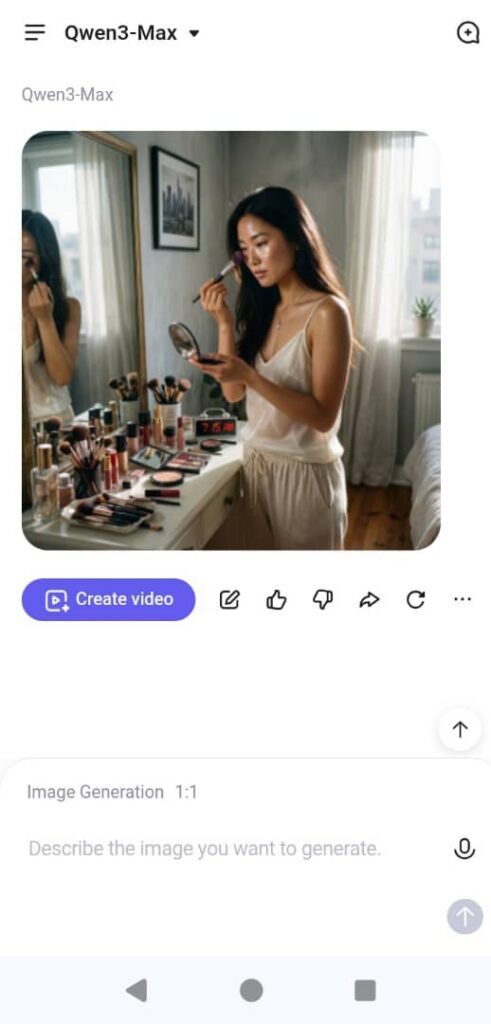
This is where I learned the most valuable information from the tutorial. The instructor started with a simple, generalized prompt: “A woman putting on makeup.”
Then they refined it to be more specific: “Hyperrealistic woman putting on makeup in her bedroom.”
The result: Qwen generated a nice overall image showing a realistic bedroom with a woman applying makeup. The instructor noted it was a pretty nice image that delivered exactly what was requested.
Pro Tips for Better Prompts
The tutorial emphasized that this particular prompt was pretty generalized. If you have a specific idea in mind or you’re looking for something very specific, you should provide all the details within your prompt.
According to the instructor, you should specify:
- The subject – Who or what is in the image
- The environment – Where the subject is located
- The mood or lighting – The atmosphere you want to create
- Any interactions – How the subject interacts with the environment
- Overall features – Specific details about the subject’s appearance
Step 6: Refining and Regenerating Images
The tutorial demonstrated how to improve your results through iteration. If you’re not satisfied with an image, you have two options:
- Regenerate – Create a new version with the same prompt
- Create a brand new image – Modify your prompt and start fresh
Because there are no credits or plans limiting you, you can generate however many images you want without worrying about running out of attempts.
Example of refinement: The instructor changed their prompt from “woman” to “girl” and added more specific details: “A hyperrealistic girl putting on makeup in her bedroom. She has long blond hair and is wearing a tank top.”
The result showed how adding specific details changed both the subject and the room setting accordingly, demonstrating Qwen’s ability to respond to detailed instructions.
Step 7: Exploring Different AI Models
One feature I found particularly interesting from the tutorial is the ability to switch between different AI models.
How to access model settings:
- Click on your account icon in the top right corner
- Go to Settings
- Navigate to Models
You’ll see different models available. By default, you’ll be using the most recent model, which appears on the top left. However, if you want to experiment with different models, you can change them, and there’s an option to expand for even more model choices.
The tutorial also mentioned a Temporary Chat feature, which allows you to chat with the AI model without having it store any information—useful for privacy-conscious users.
Step 8: Creating Logos and Graphics
The tutorial demonstrated that Qwen isn’t limited to photorealistic images. The instructor showed how to create a logo by:
- Changing the aspect ratio to 1:1 (square format)
- Providing a prompt: “Create a logo for my creative art workshop brand called Ornammo”
What you can specify for logos:
- Colors you want to use
- Text that should appear
- Style of the text
- Font styles (while it won’t create exact fonts, it can replicate certain font types)
This versatility makes Qwen useful not just for artistic images but also for branding and design work.
Step 9: Uploading and Analyzing Images
What surprised me most while researching this tutorial is that Qwen offers much more than just image generation. The platform includes image analysis and manipulation features.
How to upload images:
- Click on New Chat
- You’ll see the ability to upload documents and images
- Click Upload Image
- Select the image you want to work with
Image Editing Capabilities
The tutorial showed an example of uploading a previously generated image and asking Qwen to “change the color of the woman’s hair to blonde.”
However, the instructor noted an important limitation: Qwen doesn’t directly edit the uploaded image. Instead, it provides fine-tuned instructions you can use to make the change, or you can generate a similar image with the requested modifications through the image generation feature.
The tutorial emphasized that while you can upload photos and videos, the video editing options are limited. So keep that in mind if you’re thinking of using this platform primarily for editing existing images—it’s primarily an image generation platform rather than an editing tool.
Image Analysis Features
One particularly useful feature the tutorial demonstrated is image analysis. You can upload an image and ask Qwen to describe it, which can be helpful for:
- Understanding composition
- Improving future image generation
- Getting detailed descriptions for accessibility purposes
- Reverse-engineering successful images
Example from the tutorial: The instructor uploaded an image and asked, “Describe the people and their activities in this image.”
Qwen provided a detailed analysis: “The overall setting is a professional polish look intended for a beauty advertisement. The focus is on both the women’s appearance and the eyeshadow palette.”
Reverse Engineering Image Descriptions
Here’s where it gets clever. The instructor then copied that description, clicked on image generation, and used the AI’s own description as a prompt to create a new image.
The result? A super professional image that included an eyeshadow palette and matched the described aesthetic. This demonstrates how you can use Qwen’s analysis feature to understand what makes an effective image, then use that knowledge to create new variations.
Beyond Image Generation: Other Core Features
As I researched Qwen AI through this tutorial, I learned that image generation is just one aspect of what the platform offers.
Additional features mentioned:
- Deep Research – For comprehensive information gathering
- Video Generation – Creating video content (though with some limitations)
- Code Generation – For developers and programmers
- Document Reading and Summarization – Upload and analyze text documents
- Internet Search Capability – Access current information from the web
The instructor emphasized that because Qwen is completely free to use, it’s a really amazing tool not just for image generation but for these additional capabilities as well. On most other platforms, image generation features are pretty limited or expensive, making Qwen’s free offering particularly valuable.
Common Mistakes to Avoid
Based on what I learned from the tutorial, here are some pitfalls to watch out for:
- Using overly vague prompts – The more specific you are, the better your results will be
- Expecting direct image editing – Qwen generates new images rather than editing existing ones
- Not experimenting with different models – Different AI models may produce different styles; try switching to find what works best
- Forgetting to specify aspect ratios – Choose your image size before generating to avoid needing to regenerate
- Limiting yourself to image generation – Explore Qwen’s other features to get full value from the platform
My Takeaway from This Research
After studying this comprehensive tutorial on Qwen AI, I’m genuinely impressed by what the platform offers for free. The fact that you can generate unlimited images without subscription fees, credits, or usage limits is remarkable in a landscape where most AI tools require payment for serious use.
For writers like myself who occasionally need images for blog posts, social media, or creative projects, Qwen represents an accessible solution without ongoing costs. The ability to refine prompts, experiment with different models, and analyze existing images adds significant value beyond basic generation.
The step-by-step process is straightforward enough for beginners, yet the platform offers enough depth for more experienced users who want to fine-tune their results through detailed prompting and model selection.
Is Qwen AI Worth Using in 2026?
Based on everything I learned from this tutorial, Qwen AI is absolutely worth trying if you:
- Need occasional AI image generation without wanting to commit to paid subscriptions
- Want to experiment with AI image creation without financial risk
- Appreciate having additional features like document analysis and research capabilities in one platform
- Value the ability to generate unlimited images without credit restrictions
- Are looking for a user-friendly interface that doesn’t require technical expertise
The free tier isn’t a limited trial—it’s the full platform, which makes Qwen an excellent starting point for anyone curious about AI image generation in 2026.
If you’re exploring other AI creative tools, check out our reviews of AI Dungeon and Clever AI Humanizer to see how different AI platforms serve various creative needs.
Want to share your experience with AI creative tools? Join Inkwrit and connect with fellow writers experimenting with these technologies.

Author: Bridget Austin
Ifeoma, who writes under the pen name Bridget Austin, is the founder of Inkwrit — a freelance writing platform built for African writers and storytellers. With a background in copywriting and content strategy, she created Inkwrit to give African voices a professional home to publish, build portfolios, and grow their writing careers. When she's not building the Inkwrit community, she writes about freelance writing, African literature, and the business of creative work.