GoodNotes 2026 has gone through its most significant update yet and if you have not relearned the app since last year you are essentially using a completely different tool without knowing it. Whether you are going paperless for the first time or you have used GoodNotes through every version since the early days, this complete guide walks you through everything from the basics to the most powerful new features added in 2026.
Getting Started With GoodNotes in 2026
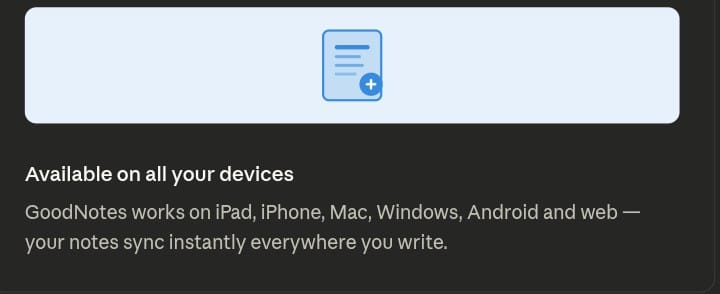
GoodNotes is available on iPad, iPhone, Mac, Windows, Android, and the web. Once you download it from the App Store you can sign up and log in using your Apple ID, Microsoft account, or Google account. This cross device support means your notes sync in real time across every device you own — start writing on your iPad and pick up exactly where you left off on your Mac or Windows computer.
There is a free version available to try but many of the advanced features that make GoodNotes genuinely powerful are locked behind the subscription. The essential plan is $11.99 per year and the GoodNotes Pro plan is $35.99 per year — both supporting all operating systems. There is also a special edition one time purchase at $35.99 but this only supports Apple devices. For most writers the essential plan covers everything needed for daily use.
One advantage GoodNotes has over Notability worth noting immediately — GoodNotes supports family sharing. If you are managing a household of writers or students this alone can make the subscription significantly better value.
Understanding the GoodNotes Home Screen
When you open GoodNotes you will see your notebooks and folders on the right and the library panel on the left. The library is divided into four sections — documents, favourites, shared, and marketplace.
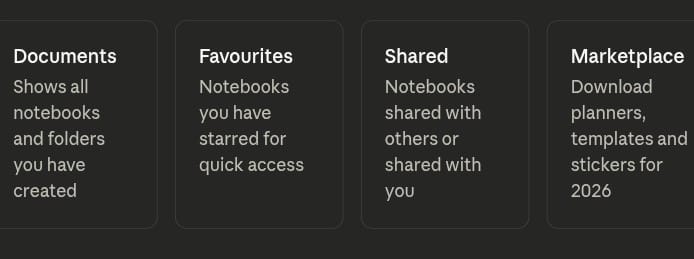
Documents shows everything you have created. Favourites shows notebooks you have starred for quick access. Shared shows notebooks you are collaborating on with others. The marketplace is where you can download beautiful templates including 2026 digital planners, note templates, and stickers to make your notes richer and more visually engaging.
Your notebooks and folders can be displayed as a list or as thumbnails and you can sort by date, last edited time, name, or type. You can also enter multi select mode to export, duplicate, move, or delete multiple items at once which saves enormous time when reorganising a large collection of notes.
Creating Notebooks and Folders
Tap the large plus icon to create different types of files including notebooks, text documents, whiteboards, quick audio recordings, quick notes, scans, study sets, and folders.
When creating a notebook you first choose your cover template, decide between portrait or landscape orientation, select a size, and then choose your paper style. Options include blank paper, dotted paper, grid paper, lined paper, writing paper, planners, music paper, and more. You can also import your own custom paper templates.
One current limitation worth knowing — unlike Notability, GoodNotes does not allow you to adjust line spacing. This means it does not perfectly adapt to different iPad sizes, particularly the iPad mini where you may need to zoom the page to make the line spacing feel comfortable.
Folders in GoodNotes can be customised with colours and icons making it genuinely easy to organise a large body of work visually at a glance.
For writers looking for free alternatives to GoodNotes on other devices read our Ultimate Guide to Free Writing Software which covers the best options across all platforms.
The Toolbar — Every Tool a Writer Needs
The GoodNotes toolbar sits in the middle of the screen and contains everything you need to write, annotate, and organise your notes.
The Lasso Tool
After the recent update the lasso tool has been moved to the very front of the toolbar. It works in two selection modes — rectangle for selecting large organised areas quickly and freehand for irregular or messily arranged content. Once you select content with the lasso you can move it, change its colour, resize it, rotate it, cut, copy, duplicate, or delete it.
The lasso tool also connects to GoodNotes AI allowing you to ask questions about, summarise, or explain selected content. You can convert selected handwriting into clean typed text or even into a custom handwritten font if you have imported fonts into your system. This handwriting recognition is exceptionally accurate making it one of the most powerful organisation tools in any note taking app.
The Pen Tool
The pen tool offers three writing styles — fountain pen, ballpoint pen, and brush pen. The fountain pen responds to pressure and nib rotation giving strokes a natural ink feel. The ballpoint pen produces consistent strokes with no pressure variation. The brush pen responds strongly to pressure making it ideal for expressive writing and sketching.
Each pen type offers settings for tip sharpness, pressure sensitivity, nib rotation angle, and stroke stabilisation. You can also enable pen behaviours including reacting to pen rotation, adjusting thickness by speed, and the incredibly useful draw and hold feature which snaps any drawn shape into a perfect circle, line, triangle, or rectangle automatically.
Gesture shortcuts make the pen tool even faster — scribble to erase lets you scribble over mistakes without switching tools and circle to lasso lets you circle any content and convert it to a lasso selection instantly.
The Highlighter and Tape Tools
The highlighter supports multiple colours and includes a straight line option for drawing perfectly clean highlight lines. One small limitation compared to Notability is that highlighter strokes cover text rather than keeping text floating above the highlight.
The tape tool is useful for covering answers in practice worksheets or hiding content temporarily. Tap tape once to make it transparent and reveal the content beneath. Tap again to restore the cover.
The Eraser
The eraser offers three modes — precision erase, standard erase, and stroke erase which removes an entire continuous stroke in one tap. You can set the eraser to only erase highlighter and tape leaving your underlying handwriting untouched. The auto deselect eraser setting automatically returns you to your pen tool after erasing so you never lose your writing flow.

The Text Box Tool — Typing Inside Your Handwritten Notes
The text box tool lets you insert typed text anywhere on a handwritten page. You can mix typed and handwritten content on the same page with full control over font, size, colour, bold, alignment, bullet points, and background colour.
The most powerful feature of the text box tool for writers is hyperlinks. You can link any piece of handwritten or typed content to a specific page within your notebooks or to an external website. This makes your notes genuinely interactive — jumping between chapters of a novel outline, between research sources, or between planning pages becomes instant.
GoodNotes Split View — Work Across Two Notebooks Simultaneously
One of the most practical features for writers managing multiple projects is split view. Press and hold any notebook and drag it to the left or right side of the screen to open two notebooks side by side.
Each notebook in split view operates independently. One page can use the pen tool while the other uses the eraser. This feels less like a basic split screen and more like two separate instances of GoodNotes running simultaneously — genuinely useful when drafting from research notes or writing one chapter while referencing another.
Text Docs — GoodNotes as a Word Processor
One of the biggest new features in GoodNotes 2026 is the text document file type. This transforms GoodNotes from a handwriting focused app into a genuinely capable writing environment for typed content.
Inside a text document you type using the slash command to insert content blocks — paragraphs, headings, quotes, bullet lists, to do lists, tables, dividers, images, videos, code blocks, and math equations. Writers familiar with Notion will find this immediately familiar.
You can embed YouTube videos directly inside a text document by pasting a link. This means you can keep reference videos, tutorial recordings, or interview footage inside the same document as your written notes about them — everything in one place.
The AI assistant inside text documents lets you ask questions and generate content which you can then select, copy, and paste directly into your document.
The table tool is functional for basic organisation but currently limited — you cannot move tables or format entire rows and columns easily. This is an area GoodNotes is still developing.
For writers who need more advanced free word processing tools alongside GoodNotes read our review of the Best Free Writing and Editing Software for Writers
Whiteboard — Mind Mapping for Writers
The whiteboard feature in GoodNotes 2026 is a free canvas with no page limits — perfect for planning story structures, mapping character relationships, outlining article series, or brainstorming ideas without the constraint of a fixed page size.
Combined with the new shape tool, whiteboard makes visual planning genuinely efficient. Draw rectangles, write titles inside them, connect them with arrows, add highlight colours, adjust opacity, and group structures. The result is a clean professional mind map built entirely inside the same app where you write your actual content.
For writers who plan visually before drafting this feature alone justifies keeping GoodNotes as your primary iPad writing app.
Audio Recording in GoodNotes 2026
Audio recording has been moved into a section called accessories in the 2026 update. When you start recording GoodNotes records audio and transcribes it into text simultaneously. You can take notes while recording and play back the audio afterwards with a full timeline of your note taking visible.
Long recordings can be summarised using the AI summary feature which generates a quick recap for efficient reviewing. One honest limitation compared to Notability — GoodNotes cannot tap on a specific word in your notes and jump to that exact moment in the audio recording. If that specific feature matters to your workflow Notability still holds the advantage there.
If audio linked note taking is important to your writing process read our full breakdown in Best Writing Apps for iPad 2026
GoodNotes AI Features
GoodNotes AI in 2026 can summarise documents, answer questions about selected content, explain technical terms, convert handwriting to text, and summarise audio recordings. These features are well integrated and unobtrusive — they sit quietly behind their own icons and never interrupt your writing flow.
One practical note — AI credits have a limit and additional credits may require extra payment. For heavy AI users the recommendation is to use ChatGPT separately for anything beyond basic summarisation to avoid running out of credits mid project.
GoodNotes 2026 pricing
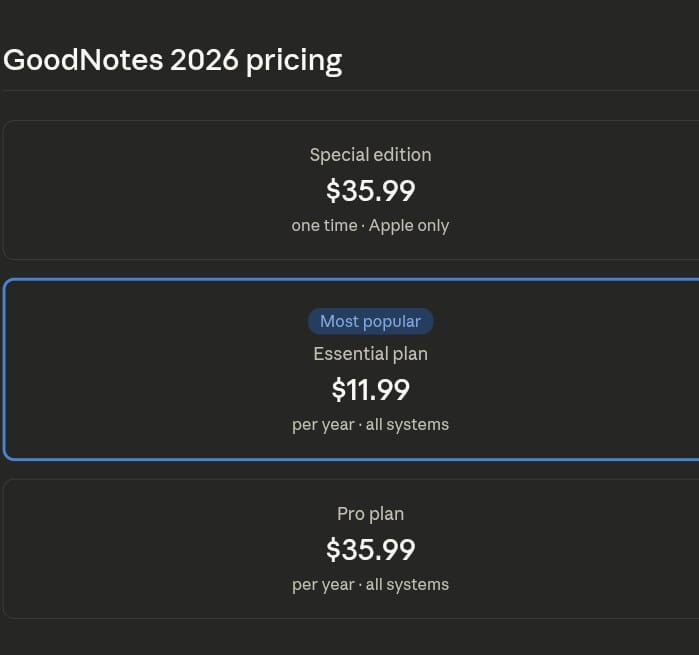
For most writers the essential plan at $11.99 per year covers everything needed for daily use. The Pro plan adds advanced AI features and collaboration tools. The special edition one time purchase only supports Apple devices.
Is GoodNotes Still Worth It in 2026?
GoodNotes remains one of the most complete writing and note taking apps available on iPad in 2026. Its handwriting engine is exceptional, its search can recognise handwritten text accurately, and the new text documents and whiteboard features genuinely expand what the app can do for writers beyond just handwritten notes.
Current limitations worth knowing — there are no layers like Noteful has, no real time handwriting beautification, and pages cannot expand beyond their set size. But for the vast majority of writing tasks these limitations are rarely a barrier.
For writers who want one app that handles handwriting, typed documents, mind mapping, audio recording, and research organisation all in one place GoodNotes 2026 is still the strongest option available.
Are you a writer ready to share your work beyond your notes? Publish your stories, articles and ideas completely free at inkwrit.com — a platform built for writers just like you.

Author: Bridget Austin
Ifeoma, who writes under the pen name Bridget Austin, is the founder of Inkwrit — a freelance writing platform built for African writers and storytellers. With a background in copywriting and content strategy, she created Inkwrit to give African voices a professional home to publish, build portfolios, and grow their writing careers. When she's not building the Inkwrit community, she writes about freelance writing, African literature, and the business of creative work.